Flow is in beta. We are actively shaping the product, so things may change as we iterate. Your feedback is welcome.
Connected tools
Flow's AI assistant becomes useful in real projects only when it can read from and act on the systems your team already uses. This page describes the connectors that ship with Flow, how authentication works inside the application, and how to add custom MCP servers.
What is exposed
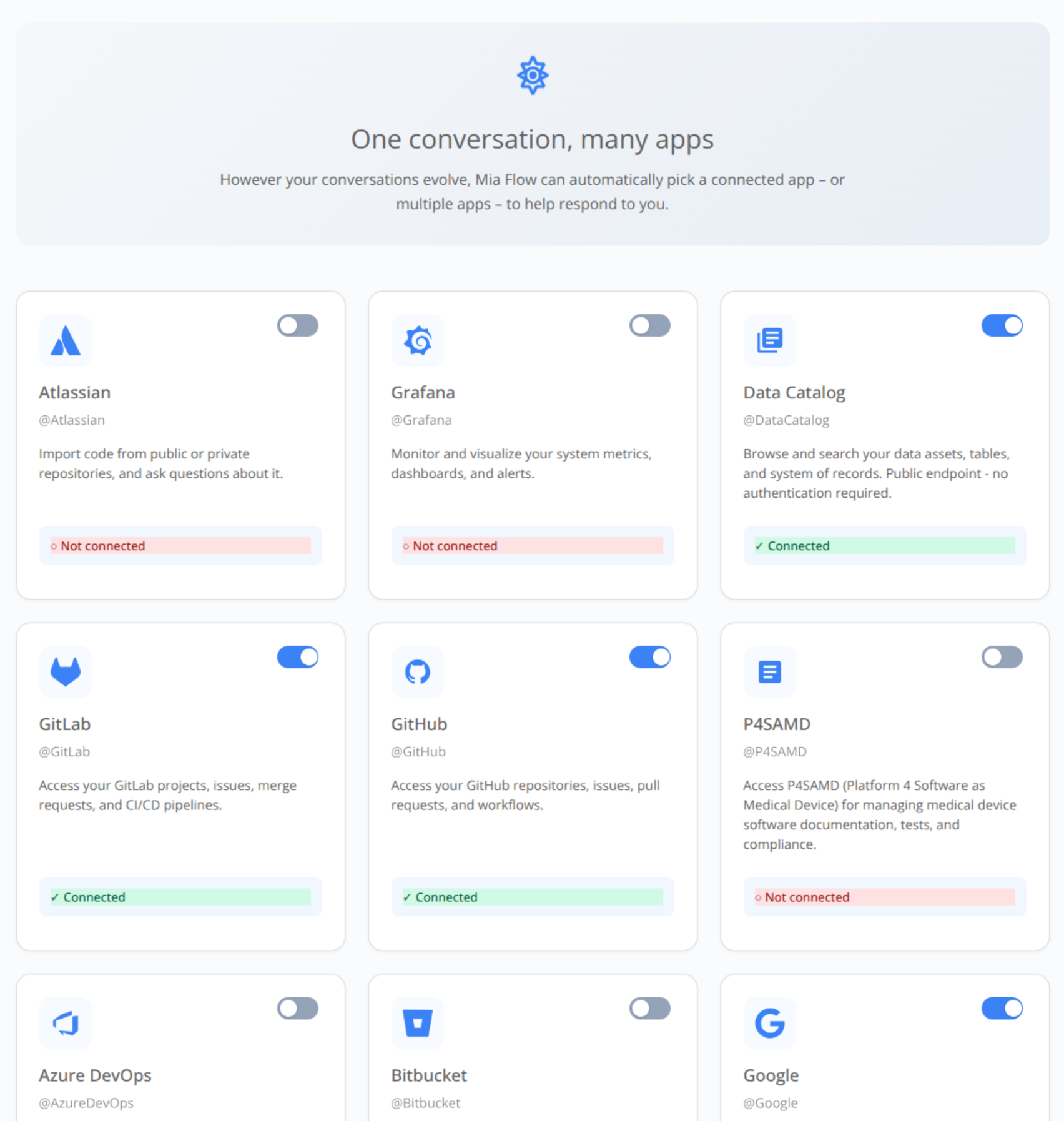
Flow provides a set of built-in integrations with third party tools and make them available to the assistant, including:
| Category | Provider | Typical actions |
|---|---|---|
| Source control | GitHub, GitLab, Bitbucket, Azure DevOps | Repositories, branches, pull/merge requests, code search |
| Project management | Atlassian (Jira / Confluence) | Issues, sprints, wiki pages |
| Monitoring | Grafana | Dashboards, alerts, metrics |
| Cloud storage | Google Drive (read-only) | List, search, fetch file content |
| Platform | Mia-Platform Console & Data Catalog | Projects, services, lineage, catalog items |
In addition to the built-in connectors, you can register any number of custom MCP servers. Registration itself happens in AI Foundry: the Add new MCP server action on the Connected Tools page opens AI Foundry in a new tab, where you configure the server and its authentication. Once a server is registered, Flow loads it automatically and treats its tools like any other tools.
The Connected Tools page
The Connected Tools page is the hub for authenticating to the built-in providers. Each provider shows its current state with connect/disconnect actions. Custom MCP servers registered in AI Foundry also show up here, with a link back to AI Foundry to edit their configuration.
Custom MCP servers support four authentication modes: oauth, api_key, bearer, and none, resolved when Flow builds the assistant's tool list for a conversation. Once a server is added or removed in AI Foundry, Flow refreshes the assistant's tool set on the next message you send.
How authentication works
When you click Connect next to a built-in provider, Flow drives the authentication flow with that provider. Once it completes, the corresponding tools become available to the assistant in every conversation. You can disconnect a provider at any time, and the related tools immediately stop being offered to the assistant.
How the assistant picks tools
In a given turn, the assistant has access to the tools exposed by custom MCP servers it is connected to, plus Flow's built-in tools.
See also
- Chat: how tool calls surface inside a conversation.
- Agentic AI: bundling tools and skills via agents and playbooks.