Flow is in beta. We are actively shaping the product, so things may change as we iterate. Your feedback is welcome.
Code
When a chat produces code, that code lives in the Canvas: the multi-pane workspace on the right side of the application. The Canvas combines a file tree, a code editor, a logs pane, and a live preview of the generated project. This page describes how generated code is organized and what you can do with it.
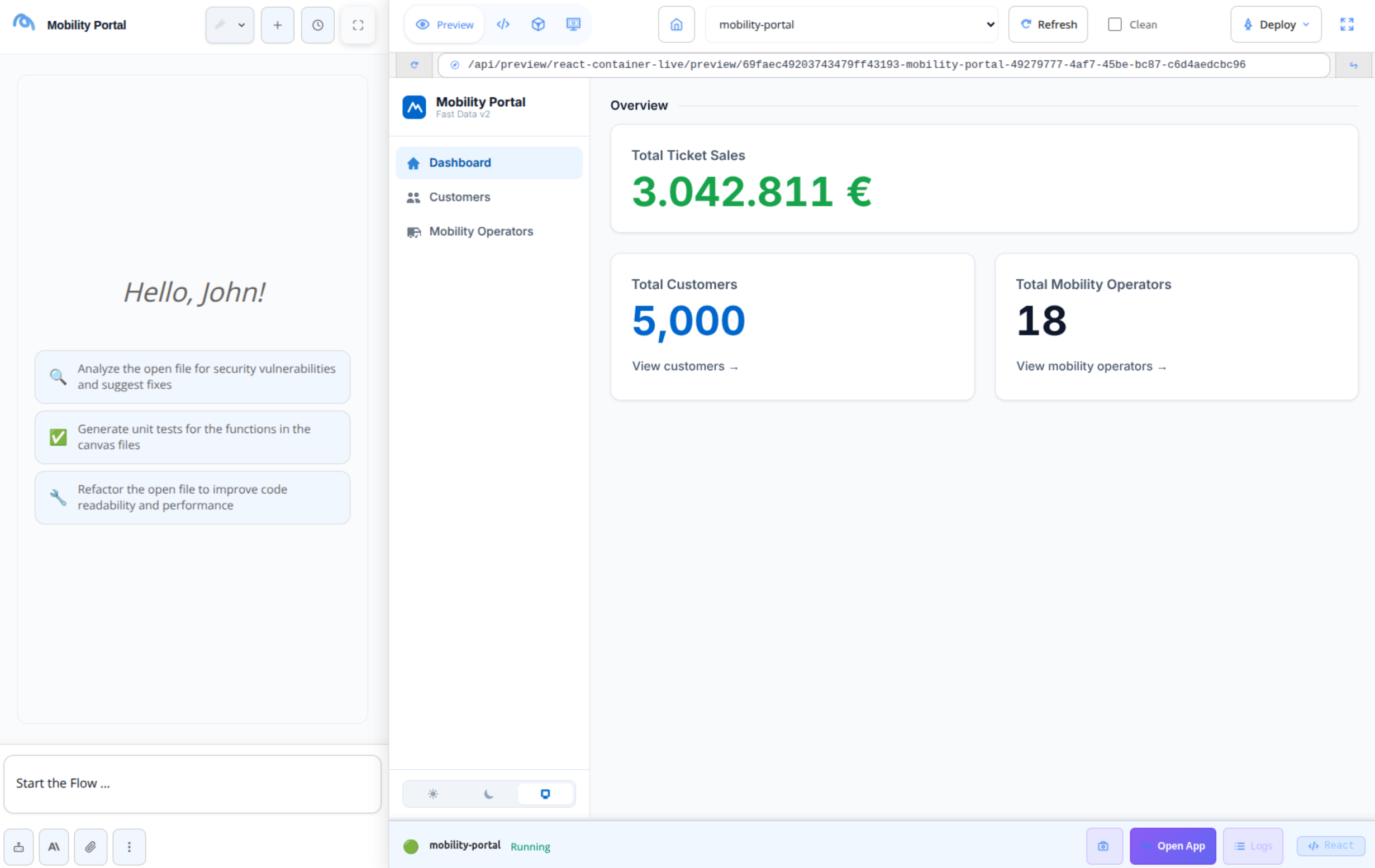
The Canvas
The Canvas shows the project's source files alongside an interactive preview. Common actions:
- Open and edit any file directly.
- Add new files, rename, or delete them.
- Restart the preview after a manual change.
- Switch between Preview, Code, Cloud, and AI tabs (plus Dashboards and Requirements when relevant).
Generated code is owned by a project stored in Flow. Multiple conversations can target the same project, and any conversation can be reopened later to continue working on the same files.
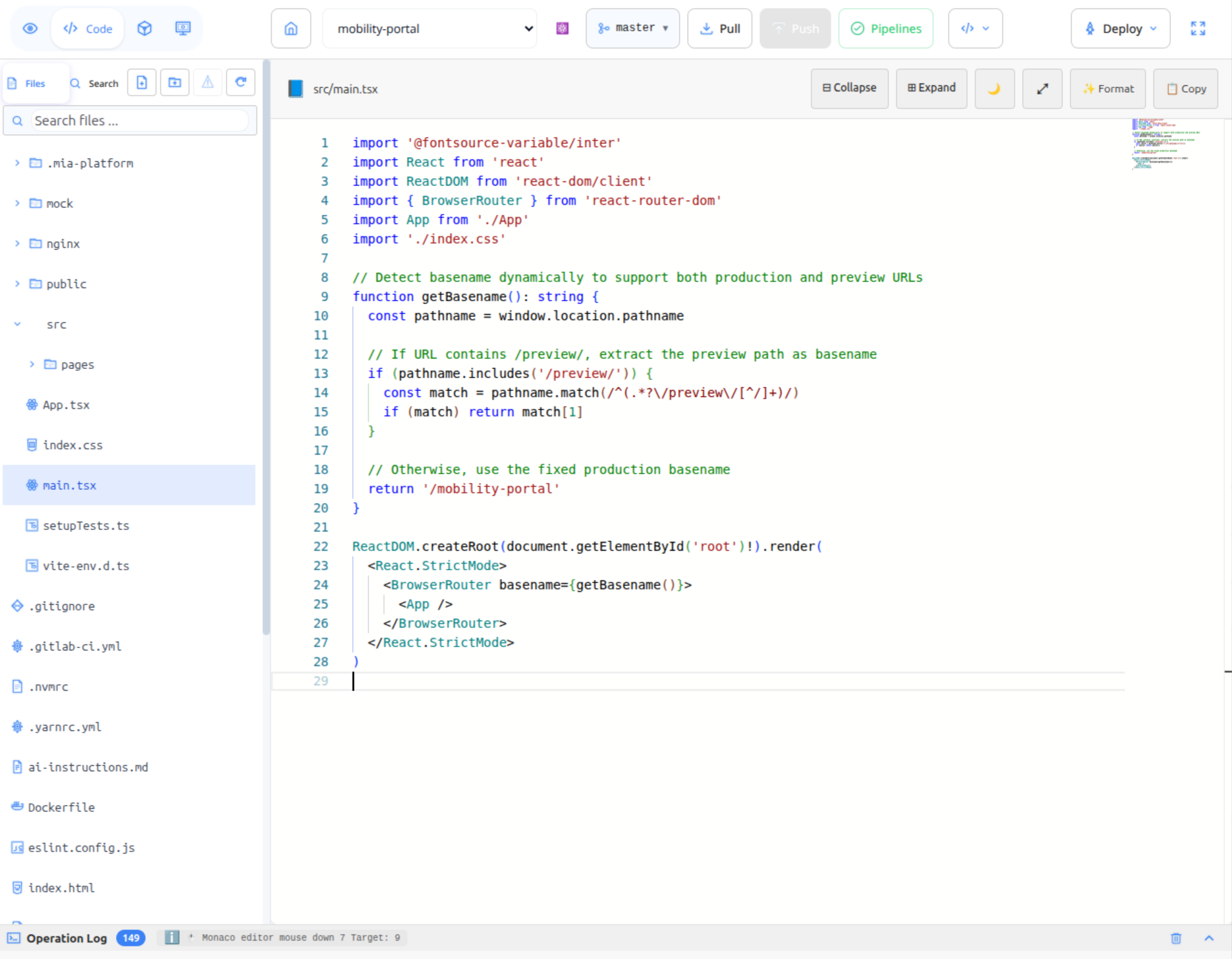
Live preview
Every project gets a live preview that updates as the assistant generates or modifies code:
- The assistant writes the files into the project.
- Flow builds the project and starts it.
- The running application is loaded inside the Canvas, so you can interact with it directly.
You can stop, restart, or refresh the preview from the Canvas at any time. Build output and runtime messages stream inside the Cloud tab, which is the first place to look if something is not working.
Flow supports a wide range of frontend and backend frameworks. The right runtime is selected automatically based on the project files, so you do not have to configure it.
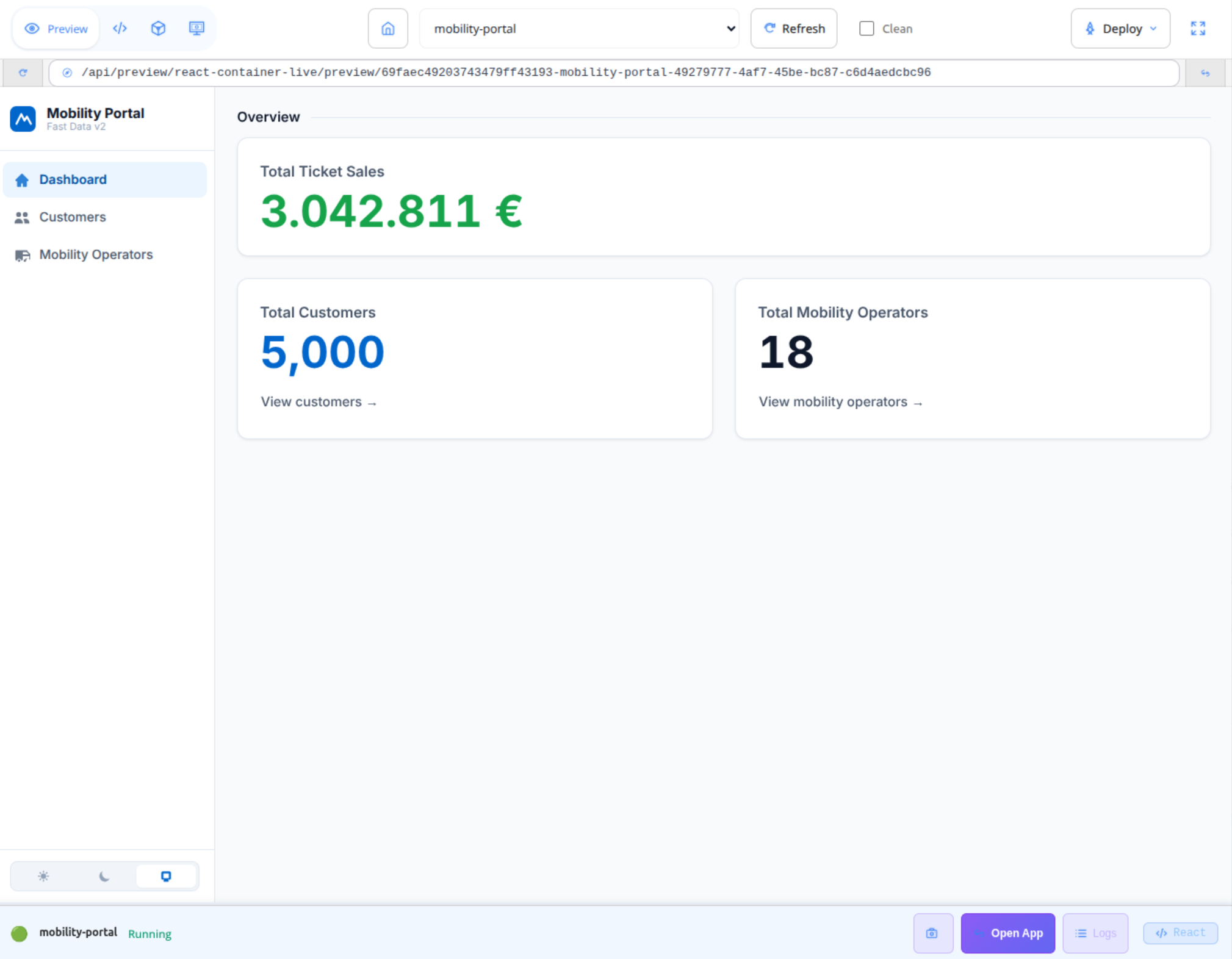
Pushing code to Mia-Platform
When the project is ready, the Deploy action on the Canvas sends the files to the Mia-Platform project tied to the conversation and triggers its CI/CD pipeline. The deploy panel only asks you to pick the destination environment; the project itself follows the one the Canvas session is already tied to.
Troubleshooting
| Symptom | First thing to check |
|---|---|
| Blank preview | Open the Cloud tab: most issues are build or dependency errors. |
| Preview unresponsive | Restart the preview from the Canvas. |
| Session expired | Render the preview again to start a fresh session. |
| Deploy failed | Open the deploy panel to see the error, then check the Mia-Platform project's pipeline for details. |
See also
- Chat: how a conversation drives the Canvas.
- Connected tools: using MCP tools to seed or modify a project.
- Agentic AI: picking the right playbook before starting a code session.