MCP Gateway
The MCP Gateway gives external AI clients, such as Claude and VS Code, a single governed endpoint for the tools of every MCP server registered in AI Foundry. You configure the endpoint once in your client and authenticate with an AI Foundry virtual key. The client then sees the tools of every server the key is allowed to reach, and nothing else.
The MCP Gateway is part of the AI Gateway: the AI Gateway governs which models you call, and the MCP Gateway governs which tools you call.
Key concepts
| Concept | Description |
|---|---|
| MCP server | A server registered in AI Foundry that exposes tools, resources and prompts through the Model Context Protocol. See MCP Server. |
| MCP Gateway | A single endpoint in front of all the registered MCP servers. It checks who is calling, forwards only the allowed calls and records them. |
| Virtual key | An AI Foundry credential used by external clients to authenticate to the gateway. A key grants access to a set of MCP servers. |
| Team key | A virtual key that belongs to a team. If it doesn't name any MCP servers, it reaches every server granted to the team. |
How it works
- Grant access (admin). A platform admin creates a virtual key, or uses a team's key, and chooses which MCP servers it can reach. A newly registered MCP server isn't reachable by any key until an admin grants it.
- Connect (user). The user opens the connection page in AI Foundry, chooses their client and copies the ready-made configuration. When the client first starts, it asks for the virtual key. After that, the user sees only the tools of the servers granted to the key.
- Monitor (admin). Calls made through the gateway are recorded with the key, the tool, the server, the client and the result.
The credentials of the MCP servers stay in AI Foundry: they are never sent to the client. Requests without a valid virtual key are rejected.
Grant access to MCP servers
- In the AI Foundry sidebar, go to Administration → Virtual Keys and click New Key, or select an existing key to edit it.
- In the MCP servers field, select the servers the key can reach.
- Save the key and share it securely with its users.
If you leave the MCP servers field empty on a team key, the key reaches every MCP server granted to that team.
Grant only the servers the key's users actually need. The client acts with the key's permissions, which are shared by everyone who uses the key.
Connect a client
- Open the MCP servers panel and select the MCP Gateway tab.
- In Client, choose your client, for example Claude Code.
- Paste your virtual key. Virtual keys are created by an admin: ask yours if you don't have one yet.
- Register the server from a terminal. Once the key is pasted, the panel shows the command to run. Copy it and run it in a terminal.
The tools available in the client follow the MCP servers granted to the key: changes appear within about a minute.
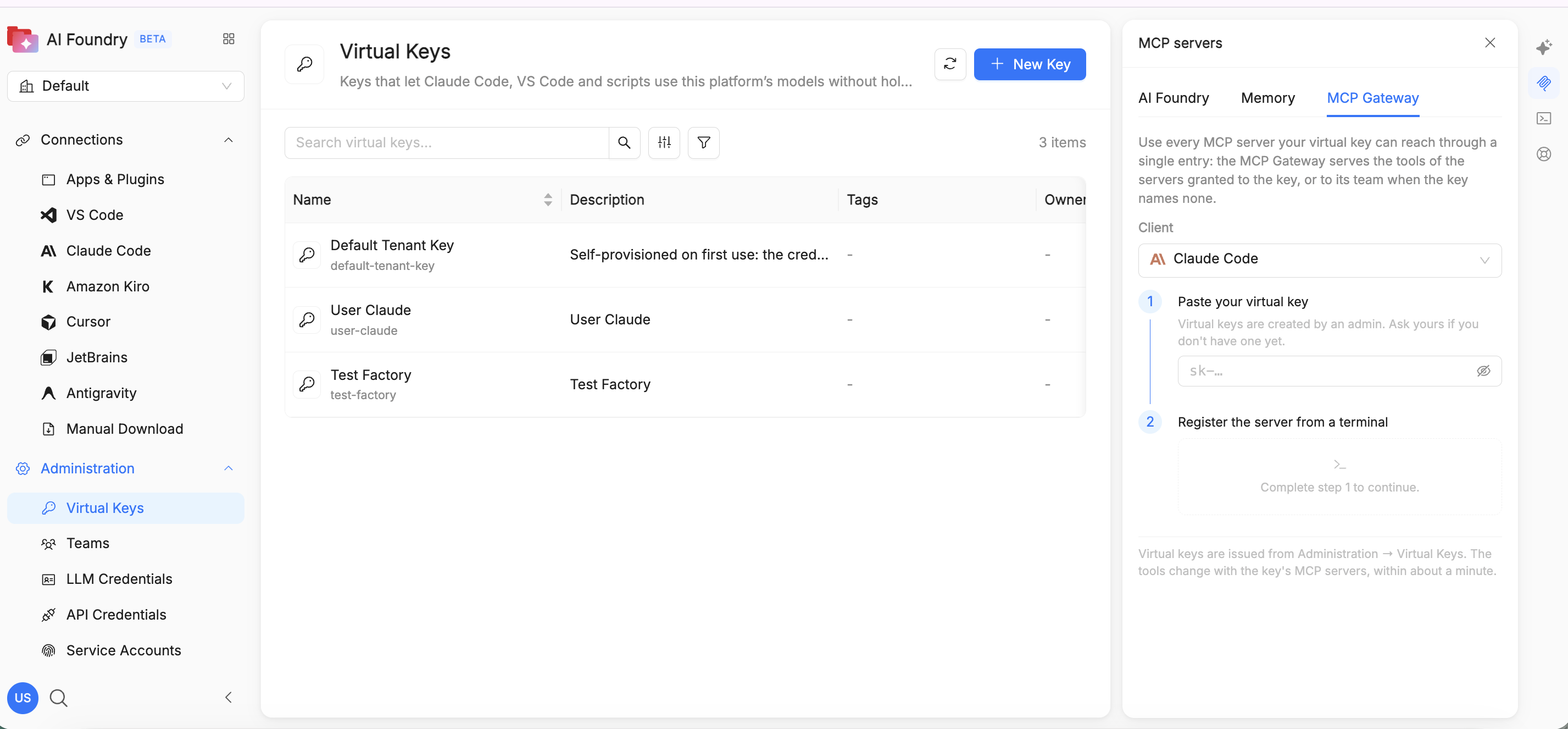
Choose the right entry
The MCP servers panel has three tabs:
| Tab | What it connects | How you sign in | What you see |
|---|---|---|---|
| AI Foundry | The AI Foundry MCP server | Your Mia-Platform account, on first connection | AI Foundry tools, one tenant at a time |
| Memory | The Memory MCP server | Your Mia-Platform account | Memory tools |
| MCP Gateway | Every MCP server granted to the virtual key | AI Foundry virtual key | The tools of those servers |
Pick the entry that matches what you need:
| If you need… | Use | Note |
|---|---|---|
| Several servers, for example Atlassian or Catalog | MCP Gateway | One configuration and one key for all of them. You act with the key's permissions, and usage is recorded against the key. |
| To act as yourself in AI Foundry, for example to create agents or playbooks in your name | AI Foundry tab | Uses your personal permissions, one tenant at a time. |
| Memory | Memory tab |
Don't install the same MCP server twice. For example, avoid adding the AI Foundry tab and an MCP Gateway key that also grants AI Foundry MCP. Your client would show the same tools twice, with different permissions, and you couldn't tell which identity a call uses.
Limitations
- The gateway authenticates the virtual key, not the individual user: calls are recorded against the key.
- Access is granted per MCP server: a key that reaches a server can use all of that server's tools.
- Supported clients: Claude and VS Code.
See also
- MCP Server: how MCP servers are registered in AI Foundry.
- Third-party integrations: use AI Foundry assets from your IDE.
- Apps & Plugins: register the client applications that consume AI Foundry.