Custom Fields
Custom Fields let you extend the standard data model of Catalog items with arbitrary, user-defined metadata, without having to modify the native schema of each Item Type.
This gives teams managing the Catalog (e.g. Platform or Governance teams) a way to capture business- or governance-specific information that isn't available out of the box, while keeping that data typed and structured — instead of relying on free-text descriptions or unstructured tags.
Managing Custom Fields
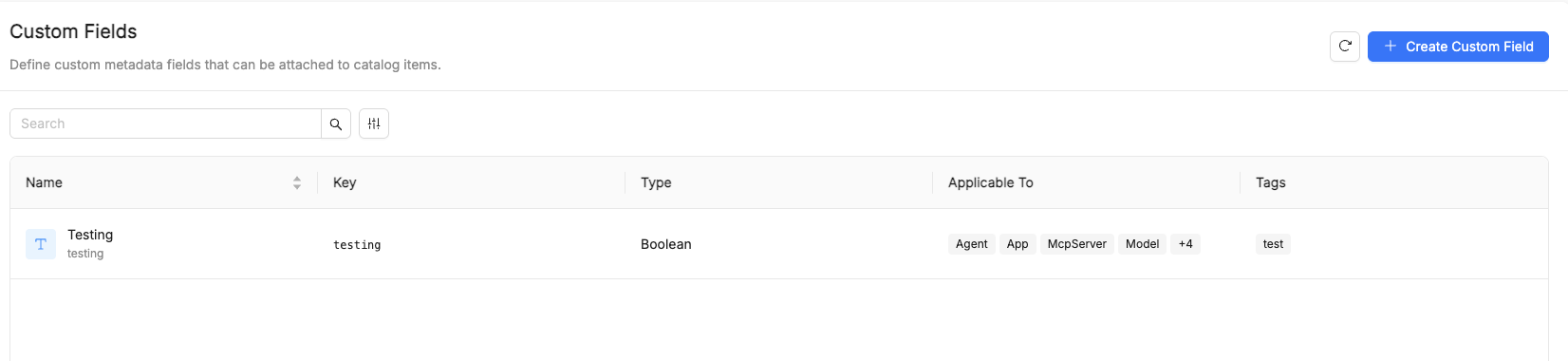
Custom Fields are managed from a dedicated Custom Fields section, under Configuration in the Catalog App, described there as: "Define custom metadata fields that can be attached to catalog items."
The Custom Fields list shows every field defined so far, with its name, technical key, type, applicability, and tags, and supports search and column filters to quickly find a specific field. A Create Custom Field button opens the creation form.
Create a Custom Field
The creation form is split into two sections: Details and Specification.
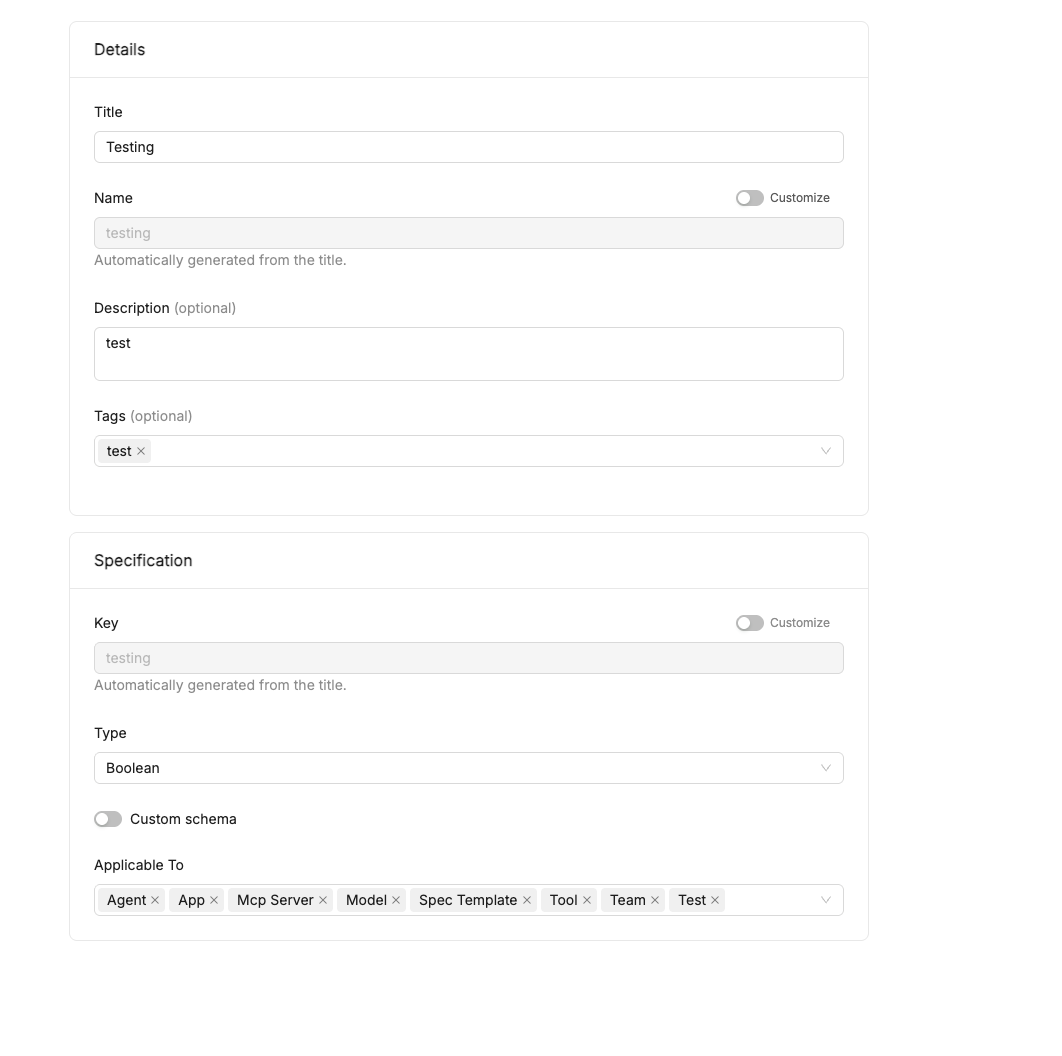
Details:
- Title — the human-readable name of the field.
- Name — a technical slug. By default it's automatically generated from the title (e.g.
Testing→testing); toggling Customize allows setting it explicitly. - Description (optional).
- Tags (optional) — used to categorize the field.
Specification:
- Key — the technical key stored on the item's
customFieldsmap. As with Name, it's automatically generated from the title by default, and can be customized via the Customize toggle. - Type — one of
String,Number,Integer,Boolean,Options,Array,Object. - Custom schema — a toggle that, when enabled, lets you define a custom JSON Schema to validate the structure of the field's value (relevant for complex types such as
ArrayorObject), instead of accepting any arbitrary content of that type. - Applicable To — the Item Type(s) the field can be associated with (e.g.
Agent,App,MCP Server,Model,Spec Template,Tool,Team, or any other registered Item Type). A field can be reserved for a single Item Type, or made available across several of them.
Setting a value on an item
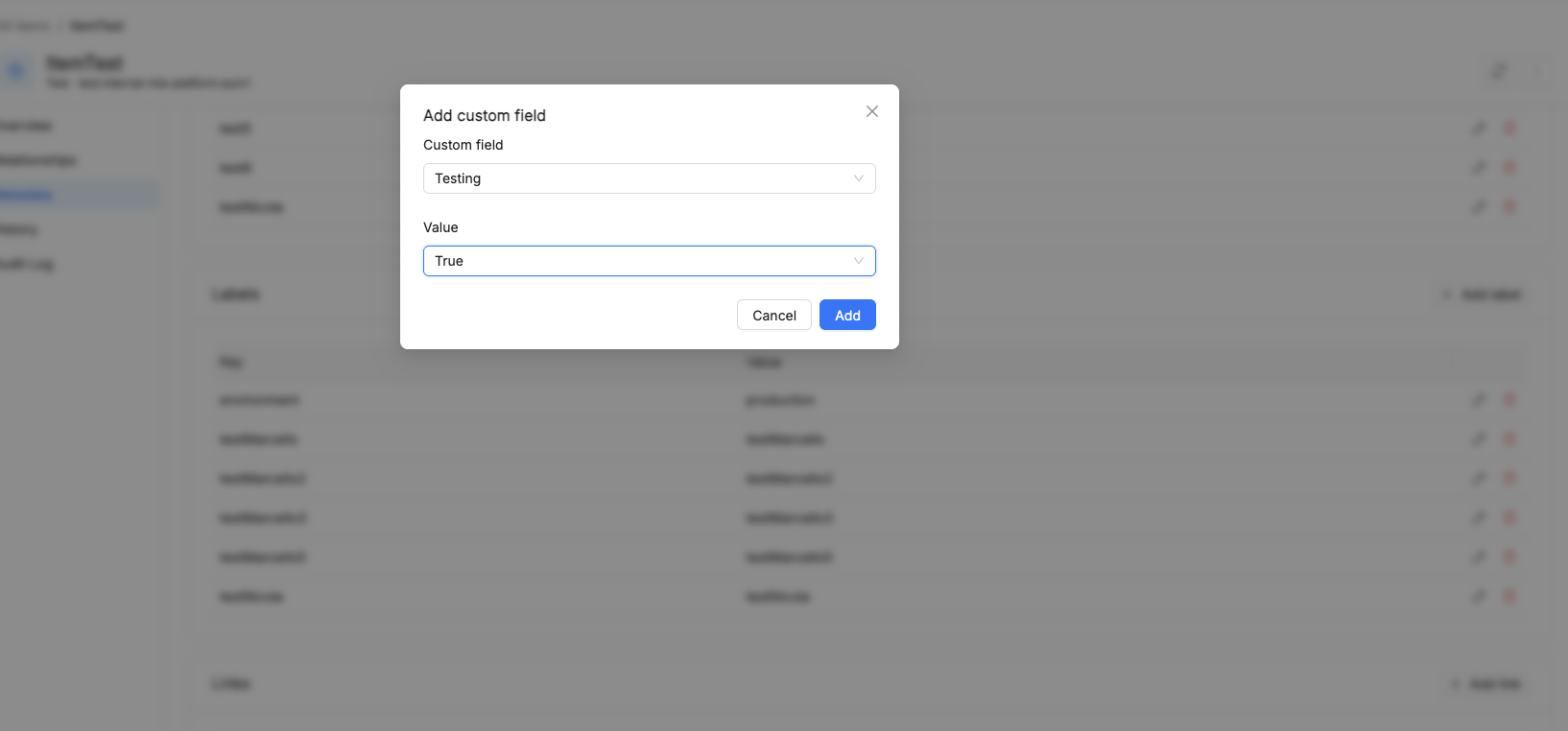
Once a Custom Field is defined and applicable to a given Item Type, it can be set on individual items of that type from the item's detail view, in its Custom Fields tab. Clicking Add custom field opens a modal where you pick the Custom field (from those applicable to that item's type) and its Value.
Example
A Governance team wants to track, for every Model published in the Catalog, its risk level under the AI Act (e.g. minimal, limited, high, unacceptable), in addition to the metadata already defined by the Model Item Type.
Without touching the Model Item Type's base schema, the team:
- Creates a Custom Field of type
Options, with the four allowed risk levels as values. - Sets its Applicable To to
Model.
From that point on, anyone publishing or updating a Model in the Catalog can (or must, if the field is made mandatory) set a value for this field. The Governance team can then filter or query items on this attribute to build compliance reports.
Benefits
- Guided, validated input — users enrich items with domain- or organization-specific information through a typed field (including a custom schema for object values) instead of ad-hoc workarounds like description fields or unstructured tags, reducing input errors.
- Extensibility without schema changes — Custom Fields let you capture metadata specific to a customer or a vertical use case (compliance, governance, internal tagging, …) without continuously extending the native schema of every Item Type.