Configure Helm Charts
The Charts section is only available for projects using the Enhanced Workflow.
The Charts section, accessible from the Design area of the Console, allows you to manage Helm chart configurations directly within your project revision.
From this section you can create and maintain the full chart file tree — including Chart.yaml, values.yaml, templates, and any other supporting files — and keep them versioned alongside the rest of your project configuration.
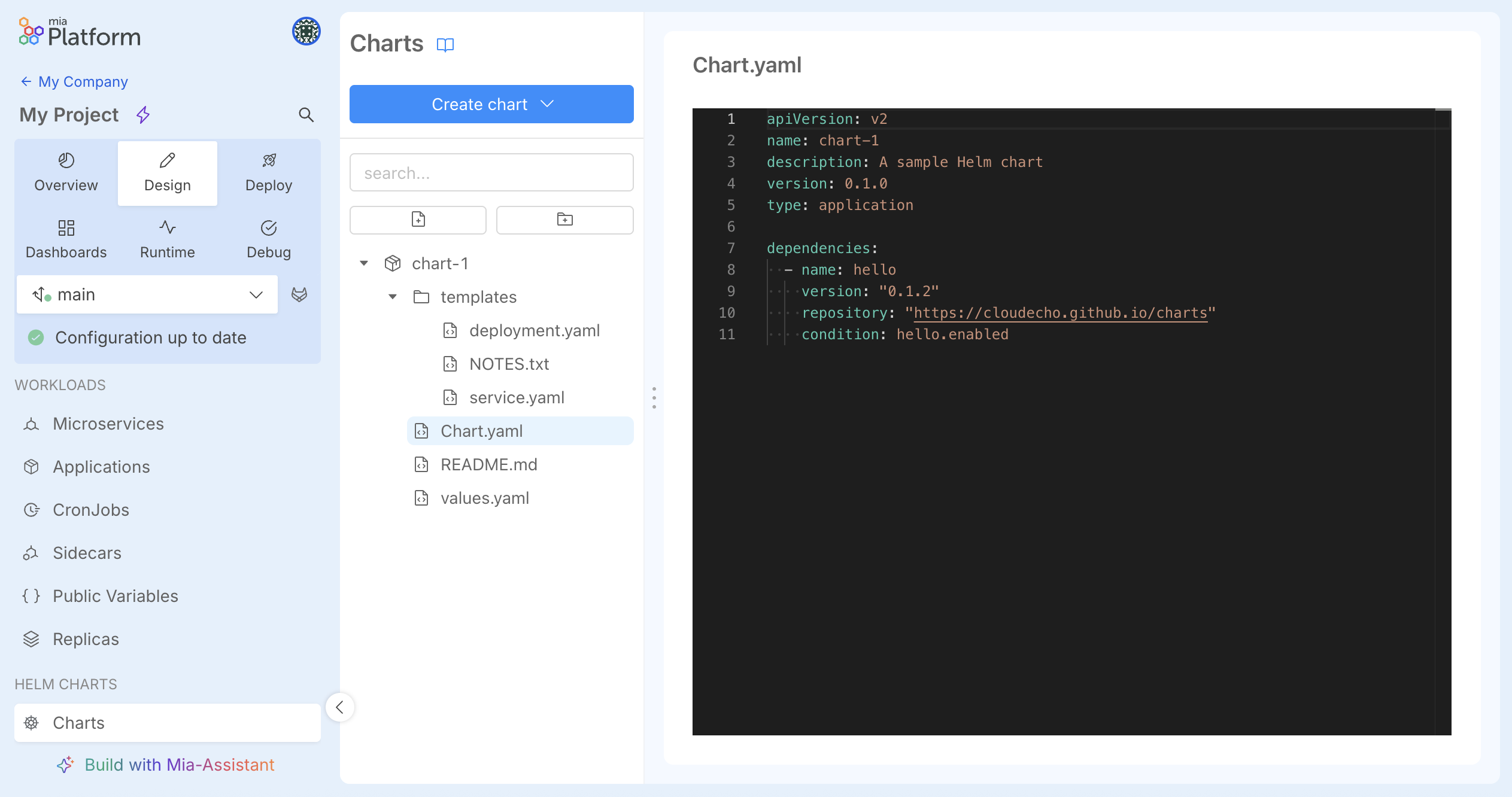
Configuring Helm Charts in Design area
Inside the Charts section you can:
- Create new chart files and folders
- Edit existing files using the integrated editor
- Delete files and folders that are no longer needed
- Rename charts, files and folders
- Preview Markdown files (
.md) rendered with full formatting directly in the Charts design section
When you create a new chart from scratch, the Console automatically scaffolds the required structure for you: a Chart.yaml, a values.yaml, and a templates/ folder are created as a starting point. You can then add your template files inside templates/ and other needed files and folders.
When configuring chart files, you can leverage the Monaco Editor with built-in Helm language support. This means you get:
- Syntax highlighting for Helm template files, standard YAML files, and Helm text files (like
NOTES.txt). - Linting and validation to catch errors and misconfigurations before saving. The editor always checks
Chart.yamlrules, and if you include an optionalvalues.schema.jsonfile, it will also validate yourvalues.yamlto warn you about missing fields or invalid overrides. - Smart autocompletion and hover tooltips:
- Autocompletion: In
values.yaml, if a schema is present, the editor provides contextual hints and autocomplete for field names. In Helm templates, it actively reads yourvalues.yamlfile to autocomplete.Values.*paths as you type. - Live Hover Tooltips: When you hover over any
.Values.*variable in a template, the editor instantly displays its current value fromvalues.yaml, along with its description, type, and default value (if defined in your values schema).
- Autocompletion: In
This makes working on complex chart configurations significantly faster and safer, especially when overriding values from dependencies.
Any modification made inside the Charts section is tracked by the standard Unsaved Local Changes indicator visible throughout the Design area.
Once saved, each save creates a new snapshot visible in the Revision History, where you can diff even chart files between any two snapshots.
During a merge of configurations, chart files participate in the standard diff and conflict resolution flow just like any other section of the configuration.
Chart Wrappers and Dependencies
A common pattern is to create a wrapper chart — a thin Chart.yaml that does not contain any templates itself, but references one or more charts in its dependencies section. This is useful to group multiple charts, apply global value overrides, or to integrate charts hosted on external OCI registries.
# wrapper/Chart.yaml
apiVersion: v2
name: wrapper
version: 0.0.0
dependencies:
  - name: my-chart
    version: "1.2.0"
    repository: "oci://my-private-registry.example.com/charts"
When deploying charts that reference external or private OCI registries, your CI/CD pipeline must be configured to authenticate to those registries and pull the referenced charts before applying the manifests. The Console does not manage registry credentials at deploy time.
For guidance on configuring your pipeline to handle private registries and resolve chart dependencies, refer to the Deploy documentation.
Chart Configuration Example
This example shows a self-contained chart (chart-1) with a Chart.yaml that declares an optional dependency, a values.yaml, and two template files.
chart-1/Chart.yaml:
apiVersion: v2
name: chart-1
description: A sample Helm chart
version: 0.1.0
type: application

dependencies:
  - name: hello
    version: "0.1.2"
    repository: "https://cloudecho.github.io/charts"
    condition: hello.enabled
chart-1/values.yaml:
hello:
  enabled: false

replicaCount: 3

image:
  repository: nginx
  tag: latest
  pullPolicy: IfNotPresent

service:
  enabled: true
  type: ClusterIP
  port: 80

resources:
  limits:
    cpu: 100m
    memory: 128Mi
  requests:
    cpu: 50m
    memory: 64Mi
chart-1/templates/deployment.yaml:
{{- if .Values.service.enabled }}
apiVersion: apps/v1
kind: Deployment
metadata:
  name: {{ .Release.Name }}
spec:
  replicas: {{ .Values.replicaCount }}
  selector:
    matchLabels:
      app: {{ .Release.Name }}
  template:
    metadata:
      labels:
        app: {{ .Release.Name }}
    spec:
      containers:
        - name: {{ .Chart.Name }}
          image: "{{ .Values.image.repository }}:{{ .Values.image.tag }}"
          imagePullPolicy: {{ .Values.image.pullPolicy }}
          ports:
            - containerPort: {{ .Values.service.port }}
          resources:
            {{- toYaml .Values.resources | nindent 12 }}
{{- end }}
miactl Support
Chart configurations are also fully supported by miactl:
miactl project describeexports the full project configuration including thechartskeymiactl project applyapplies a configuration back to a revision, charts included
This makes it straightforward to version, migrate, or programmatically manipulate chart configurations outside of the Console UI.
External Orchestrator Generator support
The chart configuration is also included in the payload sent to the External Orchestrator Generator, so it is fully part of the project's deployment output.
CI/CD Pipeline Requirements
To deploy projects that include Helm chart configurations, the pipeline must use a Kustomize-based deploy strategy. Make sure your pipeline template references the unified-deploy-job.yml template. It requires MLP version ≥ 2.7.0-helm to correctly resolve and deploy with Kustomize the chart files generated by the Console. Jobs must also extend .deploy_kustomize instead of the generic .deploy_job.
In case you want to rollback to the previews CI/CD pipelines, you can use instead the unified-deploy-job-v1.yml, that does not include support for Helm chart configuration files deployment with Kustomize.
When the Console commits chart configurations, it writes the chart files under environments/<ENV>/charts/<chart-name>/ inside the configuration repository, alongside a kustomization.yaml that references each chart via the helmCharts directive:
# environments/<ENV>/charts/kustomization.yaml
apiVersion: kustomize.config.k8s.io/v1beta1
kind: Kustomization
helmGlobals:
  chartHome: .
helmCharts:
  - name: chart-1
    releaseName: charts-chart-1
    includeCRDs: false
The resulting GitLab CI pipeline for a project with charts should look like:
include:
  # job template
  - project: 'platform/pipelines-templates'
    file: '/deploy/unified-deploy-job.yml'
    ref: 'master'

PROD:
  stage: release
  extends: .deploy_kustomize

  variables:
    KUBE_URL: "${KUBE_AZURE_PROD_URL}"
    KUBE_TOKEN: "${KUBE_AZURE_PROD_TOKEN}"
    KUBE_CA_PEM: "${KUBE_AZURE_PROD_CA_PEM}"
    ENVIRONMENT_PREFIX: "PROD_"

  only:
    variables:
      - $ENVIRONMENT_TO_DEPLOY == "PROD"
Refer to the GitLab CI configuration documentation for full configuration details.